Getting Started
Everything you need before you sit down with the app for the first time — what it's for, how it's laid out, and what happens the moment you open it.
There's no dashboard to check, no streak to protect, no level to grind. Ukulele Buddha has one job: get you from I should really practice to actually holding the ukulele, as fast as possible, and then stay out of the way.
This page covers the basics — the four places everything lives, what happens the first time you open the app, and how to find anything once you're in. If you're looking for something specific — the tuner, Jam, a particular practice tool — the rest of the guide is one click away from every page.
What Ukulele Buddha is for
Ukulele Buddha is built around four things: learning a song, capturing an idea before it disappears, working on your playing deliberately, and picking it up to jam. Everything in the app sits behind one of those four doors, and you're never more than a tap or two from any of them.
What it isn't: a habit tracker. There's no streak counter, no daily goal, no red badge guilting you back in. Onboarding says so outright — no streaks, no goals, just the songs and the time you spend with them — and it means it. Miss a week, come back, nothing resets.
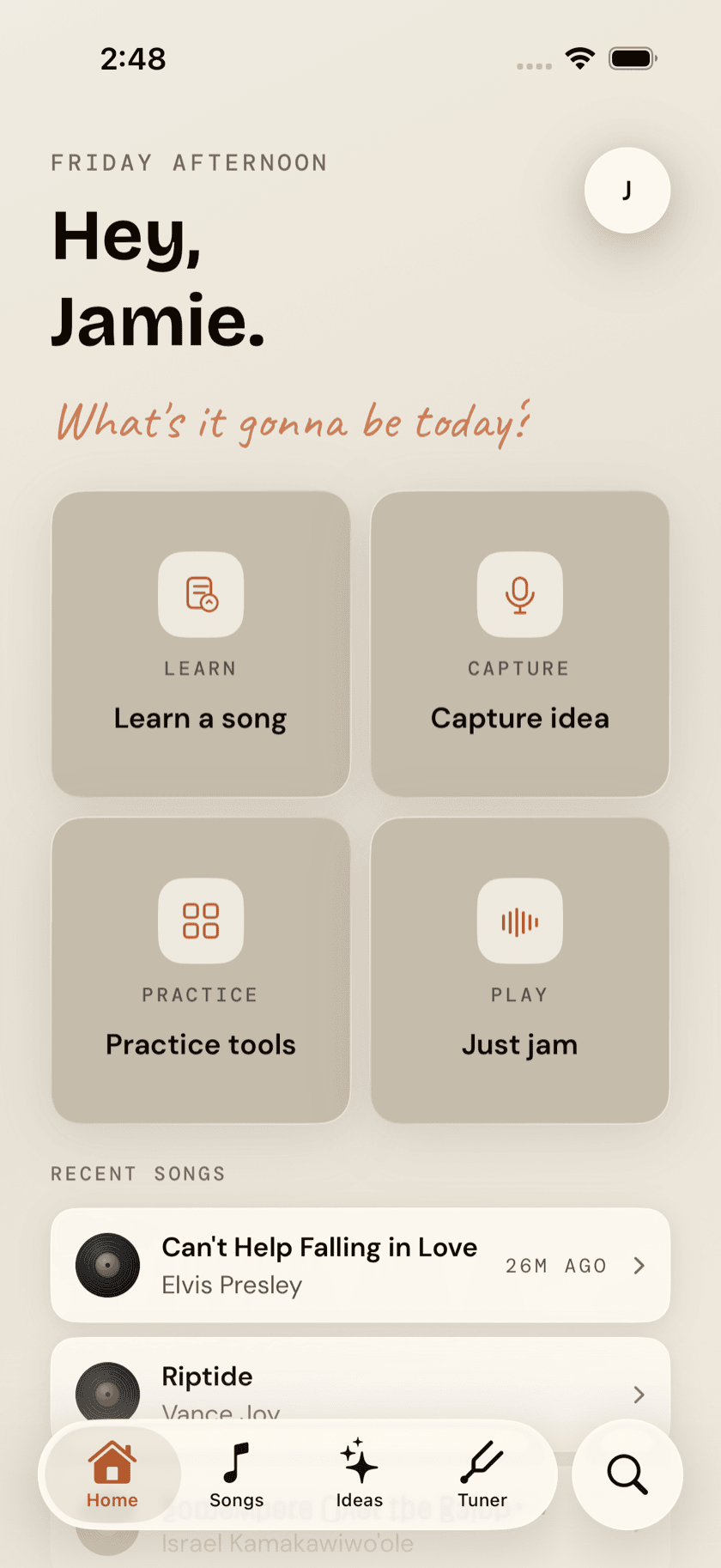
The app is organized around four tabs, plus one that sits apart from the rest:
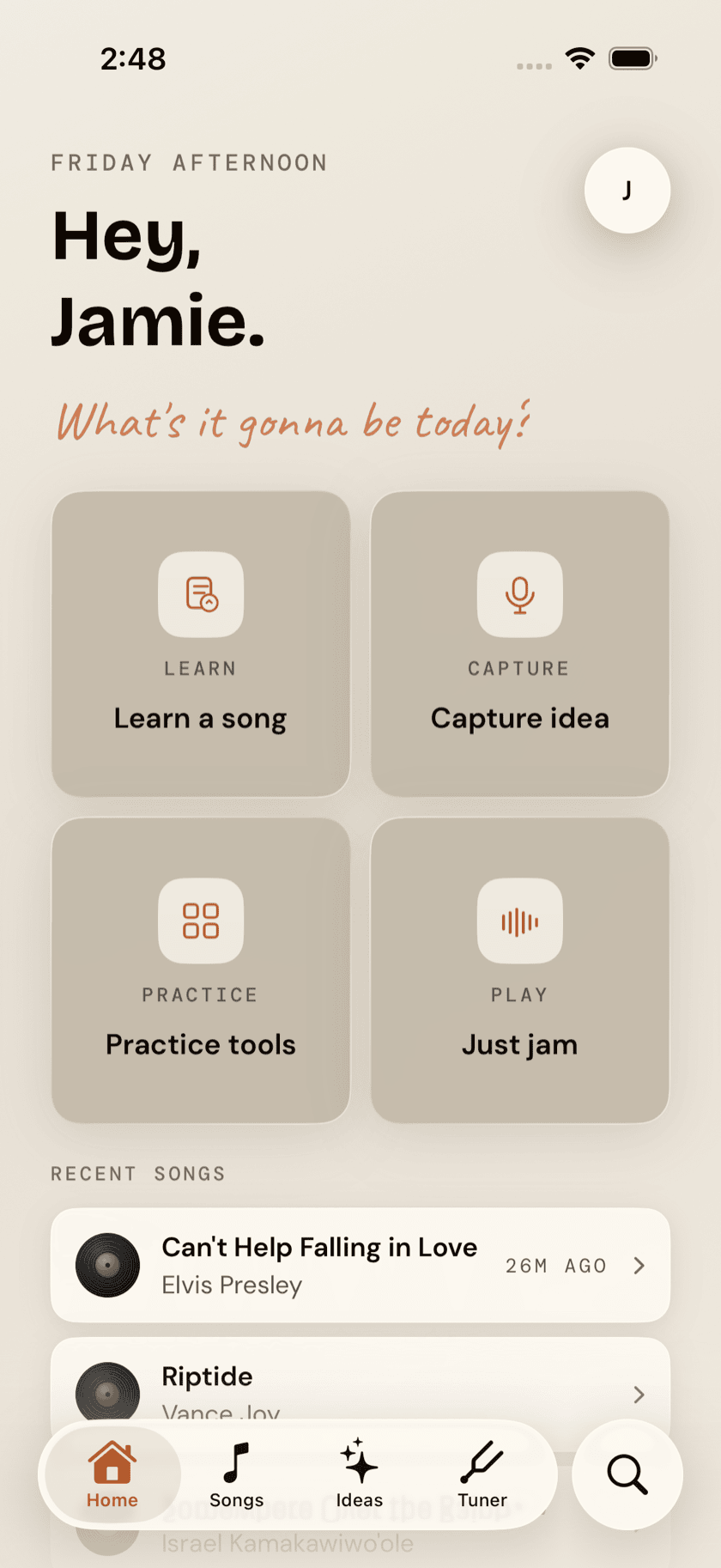
- Home — your landing page. A greeting, four action cards, and your recently practiced songs.
- Songs — your library. Every song you're learning, with chords, key, capo, and the takes you've recorded of yourself playing them.
- Ideas — a junk drawer for riffs, progressions, and half-formed thoughts, kept separate from your curated library on purpose.
- Tuner — always one tap away, because you'll open it more than anything else.
- Search — the magnifying-glass bubble, detached from the other four. One box, everything in the app.
Two more things live outside the tab bar entirely, because they're full-screen experiences rather than places you browse: Jam, the full-band backing-track session, and the Practice Hub, home to every structured practice tool. Both open from Home's action cards. Settings opens from the circle in Home's top-right corner.
Nothing in Ukulele Buddha requires an account, a login, or a connection to anything. Your library lives on your device. If you turn on analytics in Settings, it's anonymous and off by default — the app works exactly the same either way.
Setting up your space
The first time you open Ukulele Buddha, you'll go through a short setup — seven screens, one decision each, and you can back up at any point except the very first screen. None of it is required to actually start playing; skip what you don't care about and change all of it later in Settings.
1. Welcome. The app introduces itself: Your Practice Space. Your flow. One button — Let's set up — and nothing to configure yet.
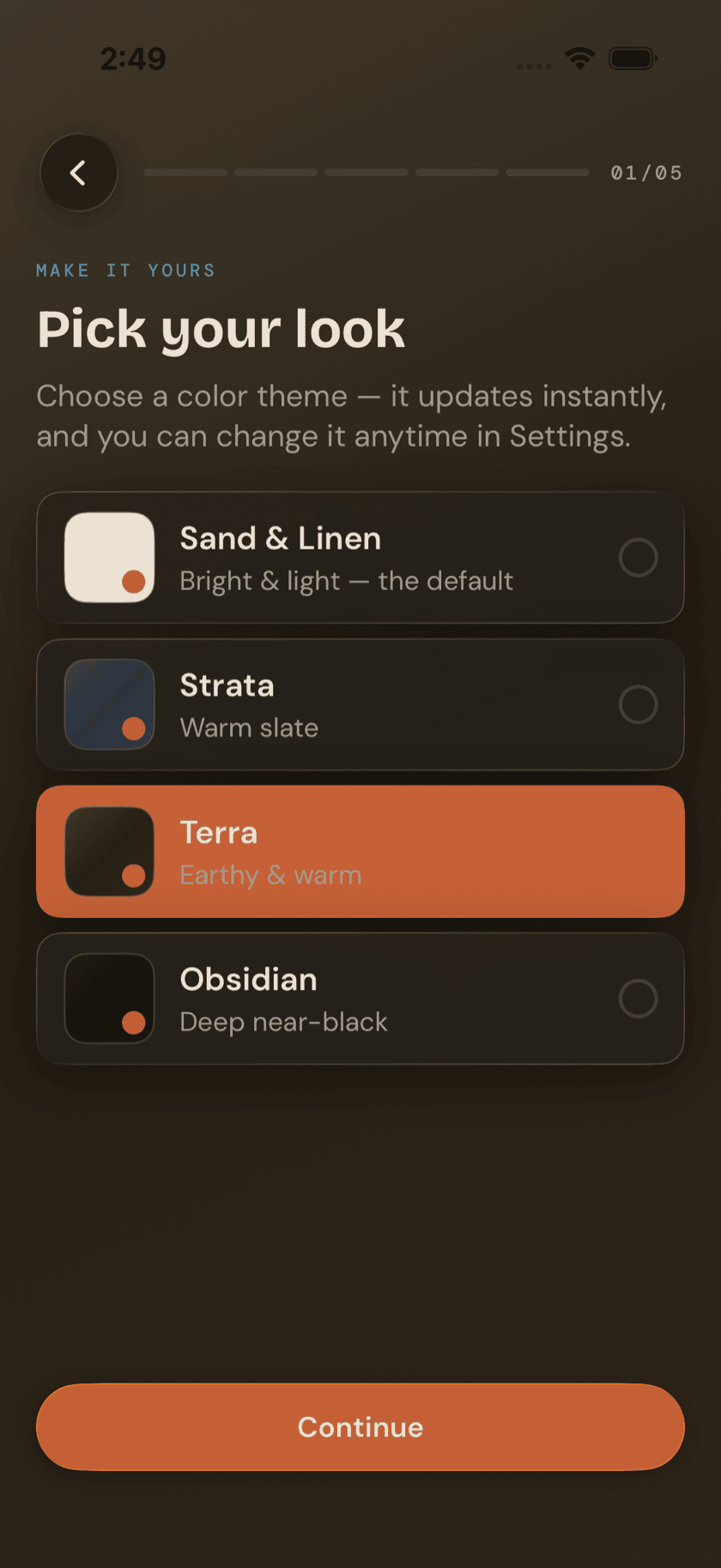
2. Theme. Pick one of four looks: Sand & Linen, Strata, Terra, or Obsidian. This isn't a one-time choice dressed up as a first-run screen — tap a card and the whole flow re-skins itself instantly, live, so you're seeing the actual app, not a preview render. Sand & Linen is the default. You can switch themes any time from Settings, as often as you like.
3. Name. First name only. A small preview chip shows you exactly how Home is about to greet you — Hey, Jamie. — so there's no mystery about where this goes.
4. Level. Beginner, Intermediate, Advanced, or Returning — for players picking the ukulele back up after time away. The app is upfront that this isn't a test: no judgment — this just helps us tailor suggestions. It mainly shapes which starter songs get suggested next.
5. First song. Optional. Type a song you want to learn — Somewhere Over the Rainbow is a common first pick — or tap one of four starter suggestions. Skip it entirely with Skip for now; adding a song later from the Songs tab takes about the same amount of time either way.
6. Microphone. The app explains why it wants mic access — tuning, capturing audio ideas, recording takes — and is specific that everything happens on your device, nothing uploaded. Then it triggers the real iOS permission prompt.
Apple's review guidelines don't allow a "maybe later" option on this particular screen. If you deny the prompt, onboarding still continues — you'll just see mic-dependent features (Tuner, Capture, recording) stay dimmed until you grant access later from Settings.
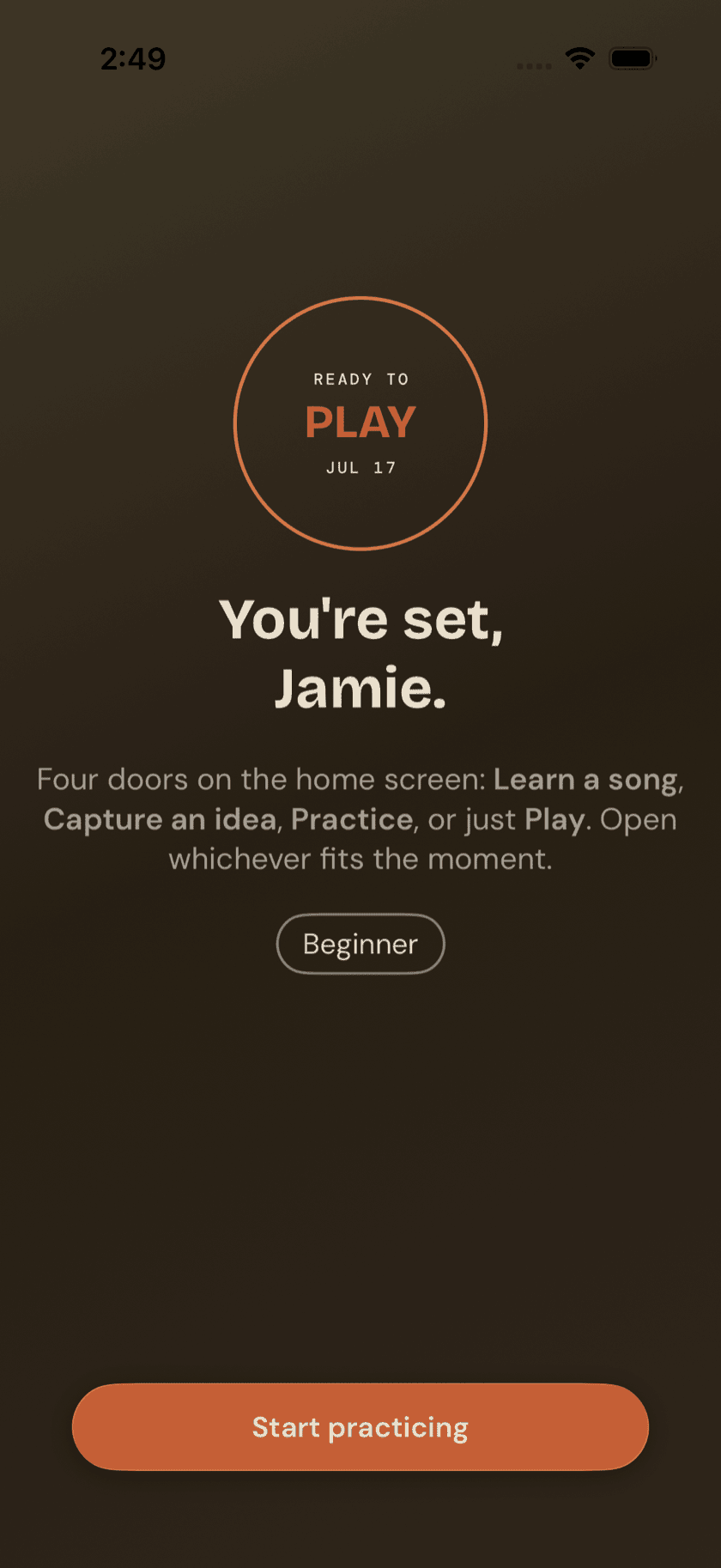
7. Done. A short recap of what you just set up, plus a plain explanation of the four Home doors — Learn, Capture, Practice, Play — so you're not guessing what to do next. Start practicing drops you straight onto Home.
A tour of Home
Home is the app's front door, and it's built to answer one question fast: what am I doing right now?
At the top, a greeting that changes with the time of day — Hey, Jamie. — under a small handwritten-style line that asks what you're in the mood for. Tap the circle in the top-right corner and Settings opens as a sheet: theme, skill level, tuning, permissions, and the rest of the app's preferences live there — along with a User Guide row that opens these very pages inside the app.
Below that, four cards, one tap each:
| Card | Opens |
|---|---|
| Learn a song | The add-a-song flow — search the built-in catalog, browse what you can already play, or type one in by hand |
| Capture idea | Record audio or jot a note, in seconds, before whatever you were thinking about slips away |
| Practice tools | The full Practice Hub — every drill, trainer, and reference tool in the app |
| Just jam | A full-band backing track starts immediately — no setup screen, no countdown |
Underneath the cards, Recent songs lists whichever five songs you've most recently practiced, each with a relative timestamp — 2h ago, 3d ago. Tap one and you land straight on that song's page, no navigating through the Songs tab first. Before you've added anything, this space shows a plain empty state pointing you at Learn a song instead.
One more thing you might see on Home, but only occasionally: after the app updates, a one-time What's New sheet summarizes what changed before you get back to your regular Home screen. It shows once per update, then gets out of the way for good. And if a newer version is waiting in the App Store, the app mentions it — a plain Update Available note with the version number, an Update button, and a Not Now that means it. Say not now and it won't raise that same version again for a day.
Finding anything, fast
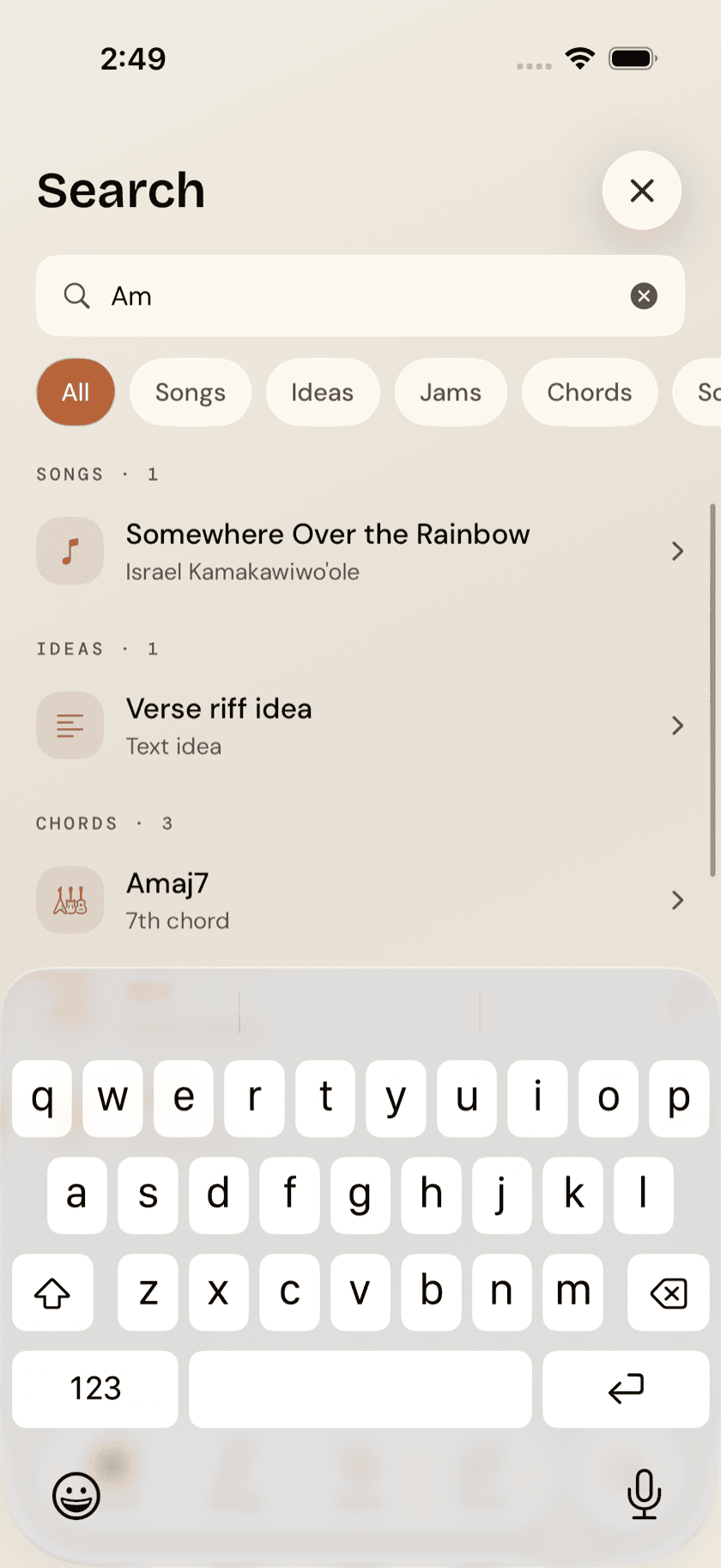
The rightmost tab — the detached magnifying-glass bubble — searches everything in the app at once: your songs, your ideas, your recorded takes, and the built-in chord and scale reference. One box, no separate search screens to remember.
Type a few letters of a song title, an artist, a chord name, or a scale, and results group themselves by type as you go. Tap a song or idea and it opens directly, on whichever tab it actually lives on — Search hands you off rather than trapping you in a search results screen. Tap a chord or scale and its full reference page opens right there, without leaving Search at all.