Tuner
A standard chromatic tuner that listens for whatever string you're playing and covers every reentrant tuning a uke player actually needs — the tool you'll open more than anything else in the app.
Tuner is the app's most-used tool, which is exactly why it gets its own permanent tab instead of living inside Practice. You'll open it constantly — before a session, between songs, mid-song if a string slipped — and it needs to be one tap away every time, not buried two screens deep. Underneath, it's a chromatic tuner: point it at a string, it tells you what note it heard and how close you are.
Reading the tuner
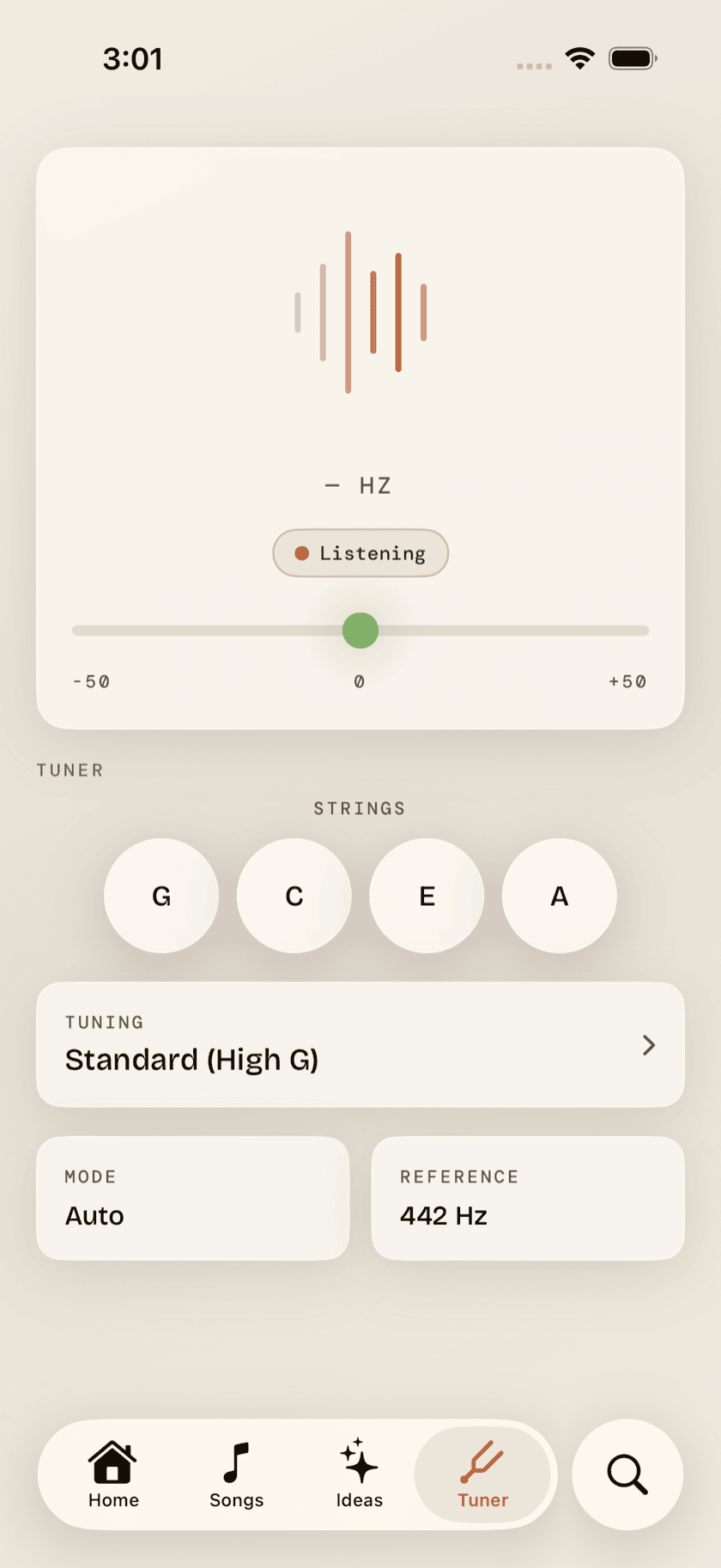
A big letter fills the middle of the screen — the note Tuner hears, large enough to read at arm's length. Underneath it, a pitch meter shows how many cents sharp or flat you are, and it turns solid green the moment you land in tune, so you're checking a color instead of squinting at a needle. The string you're currently sounding highlights itself as it's detected, so you always know which one the app thinks you're playing.
Auto and manual string mode
By default, Tuner listens to whatever you play and figures out the string on its own — pluck any of the four and it identifies the note without you telling it which one to expect. That's the mode you'll use almost all the time. But pitch detection has to guess in a noisy room, and a TV, another uke, or a conversation nearby can throw that guess off. Tap a specific string letter to lock Tuner onto it: it stops guessing and listens only for that one note, which holds up a lot better when the room isn't quiet.
Tuning presets
Standard is the default, not the limit:
| Preset | Strings (as shown on screen) | Use it when... |
|---|---|---|
| Standard | g-C-E-A (reentrant, high-G) | You want the classic uke sound — bright strumming, and what most tabs and chord charts assume |
| Low-G | G-C-E-A | You want a fuller low end, or you're picking melody lines that dip below middle C |
| Baritone | D-G-B-E | You're on a baritone-scale ukulele, tuned like the top four guitar strings |
| D Tuning | A-D-F♯-B | You're working from older Hawaiian sheet music or a campanella arrangement that calls for it |
Pick one and every string relabels and retargets to match it. No manual math, no guessing what the third string is supposed to read now that you're in Baritone.
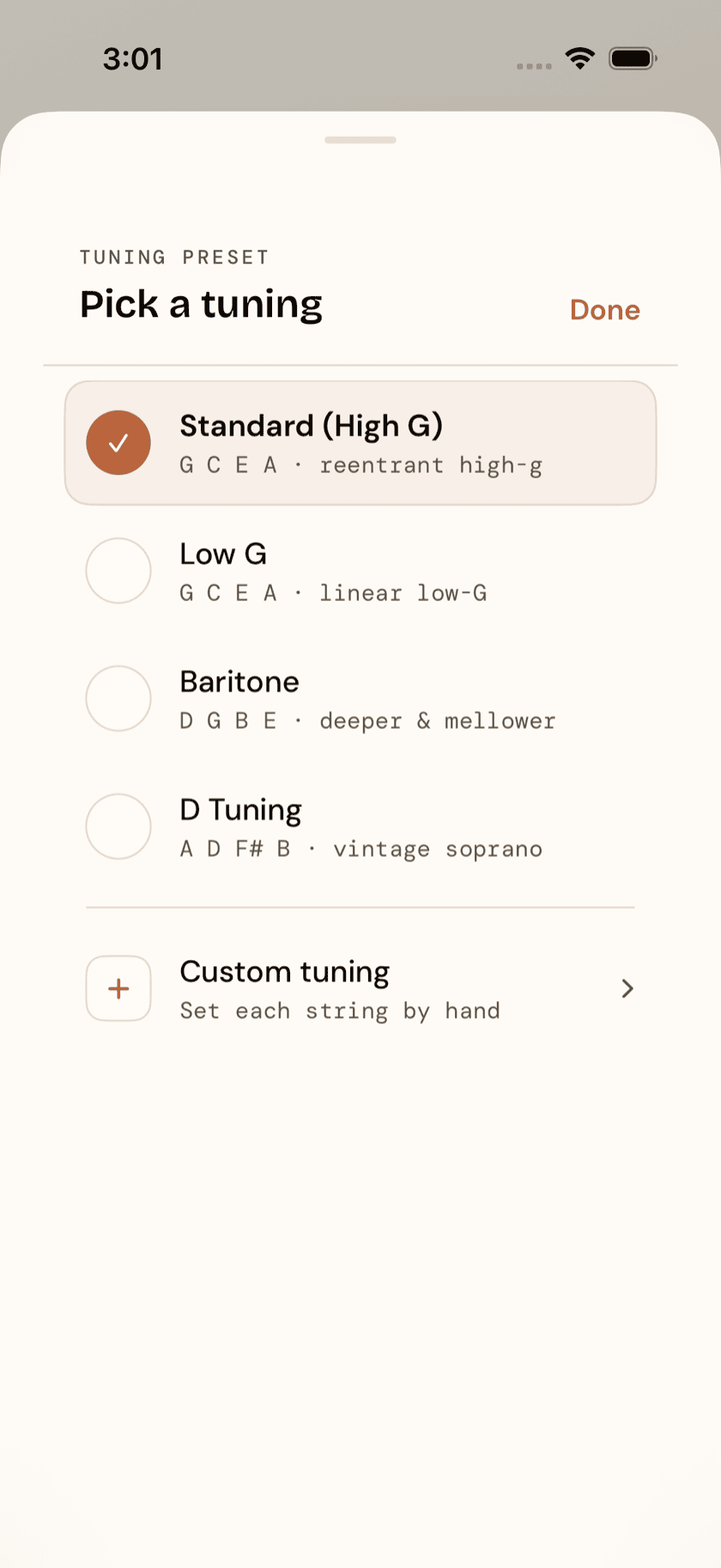
Standard tuning is reentrant — the G string is tuned up to the g above middle C, not down, the way you'd expect on an instrument that runs low to high. That's not a compromise; it's what gives the ukulele its bright, chiming strum. Low-G swaps that same string down an octave for a rounder, more guitar-like low end. Same four notes, different character. Tuner doesn't treat one as more "correct" than the other — whichever preset you pick is just home base.
Custom tuning editor
Not every tuning is in the list. If you're chasing something from a recording, or a tuning you came up with yourself, the custom editor lets you set any note and octave, per string, by hand — and pick how many strings you're setting, four, six or eight.
Give it a name and it joins a library of your own, which sits at the top of the tuning picker above the built-in presets. Keep as many as you have instruments; each one is editable and deletable on its own. They travel in your backup too, which matters more than it sounds — a tuning you worked out by ear exists nowhere else.
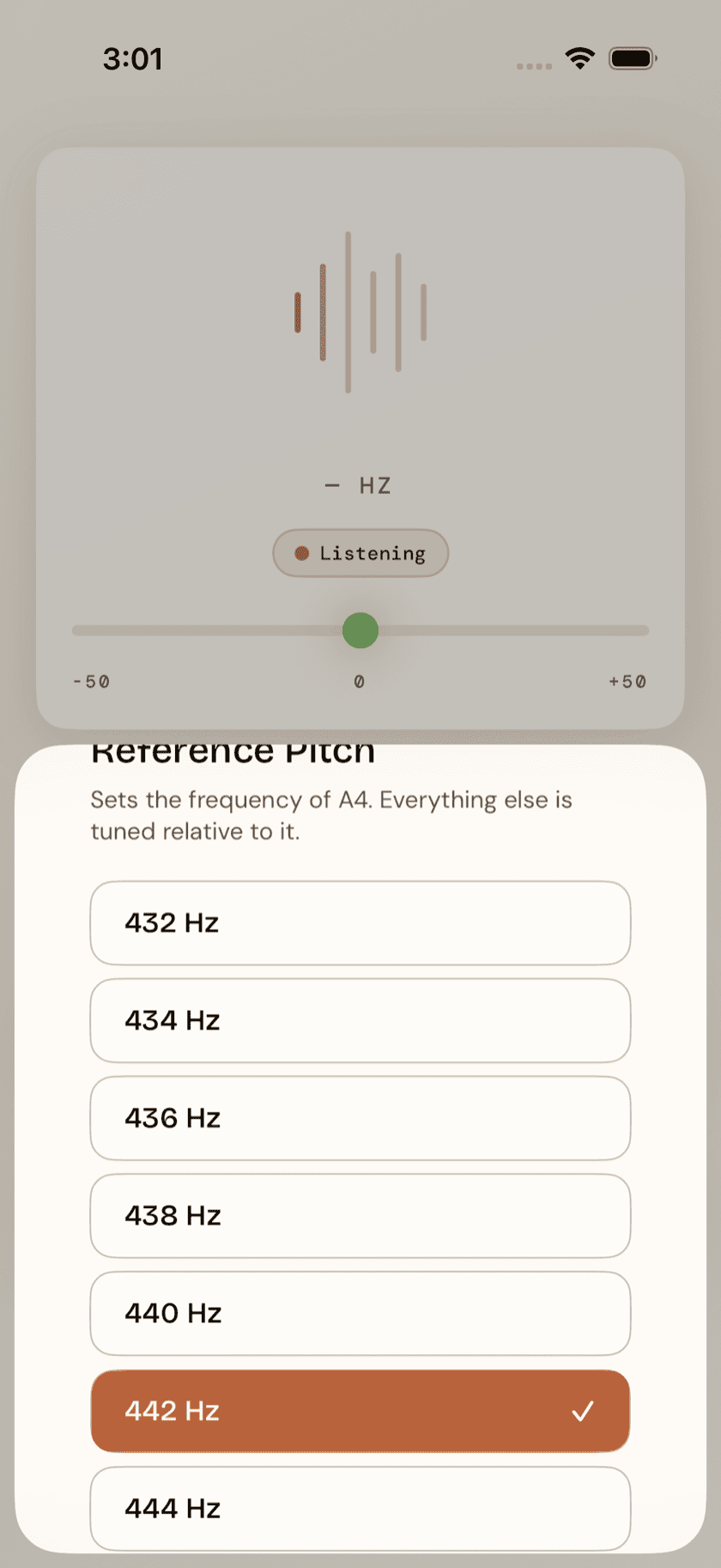
Reference pitch
By default, the A above middle C is tuned to 440 Hz — the standard modern reference pitch. If you're matching a piano, playing along with a recording, or tuning with a group that runs a little different, adjust the reference right there in Tuner — 432 up to 444 Hz, in 2 Hz steps. Change it once and every string, in every tuning, retargets around the new reference. Nothing else changes — Tuner still just listens; the new reference is simply what it measures you against.